The Roku TV Wireless Speakers may be some of the best speakers to use in a bedroom because of the voice clarity and sound leveling features which will enable you to listen with full sound without annoying the neighbors or waking the children ... that is, as long as your bedroom television runs Roku TV.
As great as these speakers are, they only only work with Roku TVs from TCL, Insignia, Hisense, Sharp and others. They won't work with Roku streaming devices like the Roku Ultra, which is why these speakers are sold exclusively at Roku.com so that Roku can make sure that you're setup for success.
That said, it's not like there aren't any Roku TVs on the market. Roku-integrated televisions are some of the most popular low cost TVs available today and an ever-expanding catalog thanks to Roku's robust partnership deals. These speakers are the first of its kind to come from Roku and we expect more announcements and possible upgrades in Roku's audio category at CES 2019.
Beyond its limited availability, the Wireless Speaker's only fault is its anemic bass, due in no small part to the lack of a subwoofer. If you're after cinema-quality sound you'd be better off with a soundbar/subwoofer combo - like the ridiculously low-cost Vizio SB3621 - but, if you're looking for a late-night listening solution for your bedroom Roku TV, the Wireless Speakers are the way to go.
Design and setup
The speakers are 8 inches tall and look very much like the Sonos One except that they are 2 inches taller. During setup, a speaker is placed on either side of the TV and plugged into an AC outlet meaning two outlets or an extension cord will be needed.
Each speaker tells you to turn on the TV and hold down the home button for 5 seconds and the TV does the rest. Both of the new included remotes are activated the same way easily and instantly.
We needed to turn the TV on and off once to get everything to talk to each other but it took under two minutes for complete installation.
The tops of the speakers and the touch remote use a soft rubber which may be a dust collector but it's too early to say how hard that would be to clean.
If you want to connect your phone or tablet, however, Roku isn't going to leave you out in the cold: Bluetooth is included so that you can stream music from other devices, controlled through an app.
More convenient is that, while the Roku app will allow you to control your Roku TV and Roku Wireless Speaker setup, it's far from the only way: In fact, if you buy the package that's on Roku's site right now, Roku includes its upgraded Voice Remote and the Touch alongside the Wireless Speakers.
The latter does not need line of sight to the TV as it uses RF codes to send commands, enabling it to be placed anywhere in the house. It has buttons that can be programmed and can control volume, play, pause, and skip forward or back, and Roku says that it's designed to sit in an adjacent room to where you watch TV, thereby allowing you to control the volume without fear of losing the TV remote.
Performance
We found the dialog sounded better, both crisper and clearer, than the Roku TV's built-in speakers. However, the bass response could cause speaker rattle during action movies although it seemed to be curtailed if the speakers were placed closer to the wall for better reflection. These are a pair of stereo speakers and a wider image than you would hear from a soundbar is shown.
We found that when watching an action movie we got very good sound using the leveling setting as well as the bass boost when watching the train crash in the movie Super8. The bass rattle was lessened and the scene was as intense as it was supposed to be. The bass boost was not necessary for most of our TV/movie watching with the speakers set closer to the wall and normal settings worked best with music.
In terms of controlling the speakers, the tabletop remote is useful if you are in another room and want to stream music. You can save two shortcuts for stations you listen to often. The microphone button will change to other stations but we were unable to request a particular song. We were able to ask for an artist such as "play Lady Gaga or the Grateful Dead" or genre by saying "play blues." The source for this music can either be iHeart Radio, Pandora, TuneIn or Spotify Connect.
The TV can also be turned off from wherever you are in the house and the TV screen remained off when we used the tabletop remote to activate music.
Another neat trick the speakers have is Automatic Volume Leveling that boosts the sound when it gets too low, lowers the sound in loud scenes or adjusts the volume for booming commercials. All settings can be changed in case you want to get the full effect of a movie while still supporting full stereo sound and dialogue enhancement.
This technology, in part, was engineered by a company Roku acquired last year called Dynastrom, a multi-room audio startup based out Denmark.
Final verdict
The Roku TV Wireless Speakers are, overall, a great option for an affordable easy to connect speaker upgrade for your Roku TV, especially if you listen to lots of music and enjoy the idea of the Roku Assistant.
As of now there are no options to add a subwoofer or wireless rear speakers, but that's something that could change by this time next year.
Worse is that, for now, the speakers only work with Roku TVs, and not any of the half-dozen cheaper players Roku has out on the market - not only would this have greatly expanded the compatibility of the speakers, but it would've offered an extremely low-cost solution to upgrade both your smart TV and your sound quality.
While a Vizio soundbar may be harder to setup and slightly lower cost, this Roku system also includes two voice remotes enhancing the use of your Roku TV and overall presents a better value to those looking for a wireless audio upgrade.
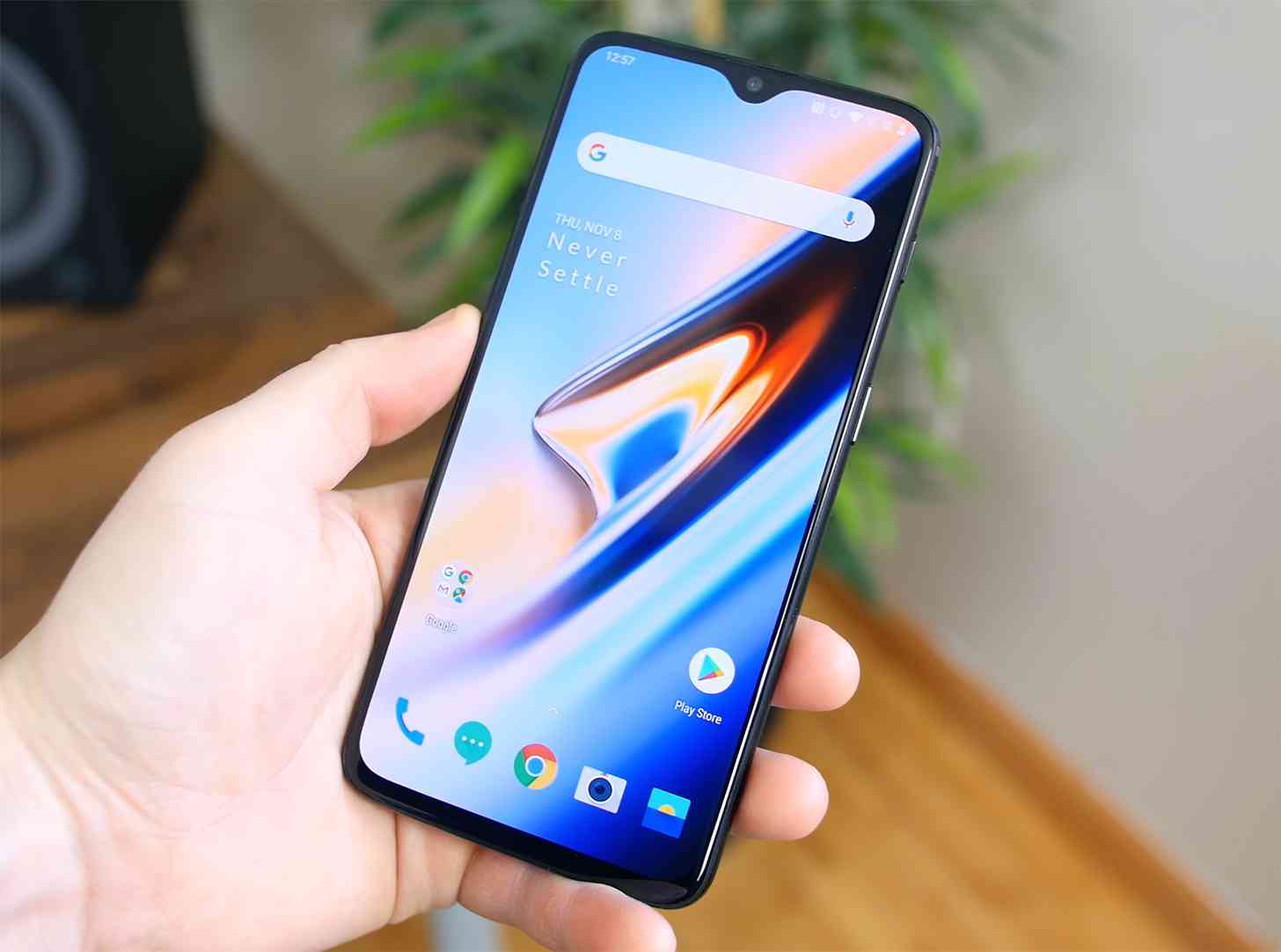
The fact that the OnePlus 6T lacks a 3.5mm headphone jack has earned the device some criticism, but today it's been confirmed that the flagship does have some audio features to try and make up for its lack of a jack.
Dirac Research today confirmed that two of its audio features are included with the OnePlus 6T to help it "produce a sophisticated, premium listening experience." The OnePlus 6T's speaker is optimized by Dirac Power Sound, which the company says helps to deliver clearer, more natural sound as well as richer details and more powerful bass.
Dirac and OnePlus also worked together on the OnePlus Bullet earphones, using Dirac HD Sound tech to measure and correct the impulse and frequency response of the headphones to help improve sound quality.
Lots of people rely on a 3.5mm headphone jack to listen to music on their smartphone, so when a device is missing that port, it can be a bit of a pain. OnePlus tried to make up for ditching the 3.5mm headphone jack by working with Dirac to improve the sound output of the OnePlus 6T's speaker and headphones. Considering many people rely on their phone for consuming audio and video content, this is good news.
If you have a OnePlus 6T, what do you think of its speaker and headphone performance?
I can still remember a time when a VGA camera in a phone was something to get excited about. Well, maybe not excited, but at least the phone had a camera at all. But back then it wasn't uncommon to still see standalone cameras more often than not. Those were just the better alternative for someone --anyone-- who thought they might want to take a photo or two.
Of course, while the standalone cameras out there are still the best way to take a photo or video, smartphone cameras are ridiculously good for most people. The best camera to have now is the one in your pocket, because smartphone manufacturers have put such a huge focus on that one part of the phone.
Maybe it's because the smartphone really isn't a phone anymore, and the camera has just taken over as the most important detail.
That's certainly the case for me. While I'm not taking as many photos as I normally do right now, the camera in my phone is 100% more important than my ability to make a phone call or answer one. That's one of the reasons why when a company talks about the camera in their phone, I listen. But then I wait for the reviews and eventually try it out for myself before making a final decision.
The one thing that I've come to realize is that quality over quantity is very much a thing, and while some manufacturers out there are starting to go a little crazy with the number of cameras they are offering, I just want them to work and offer up fantastic images more than I want anything else. Sure, it's great that you've got four cameras on the back of your phone, but are they any good? Are they as good as the phones with two, or even one on the back? If not, then what's the point?
I mentioned not too long ago that I switched to the iPhone XR over the XS Max, which obviously sacrifices one of the rear cameras in the switch. I thought it would bother me, and while I am definitely missing some features, the camera in the iPhone XR is still fantastic with its single sensor. And the same can be said for Google, which continues to launch its Pixel smartphones (even the big ones) with a single rear camera.
And then there's LG, which apparently has a patent app out there that details a smartphone with 16 cameras on the back of it. I get the gimmick, but I can't for the life of me think that's going to help LG in any meaningful way make up any ground in the smartphone market. But that's just because I think this is more of a play on fancy marketing and bullet points on a sheet, rather than any meaningful change for someone who might own the device.
It's a bit pessimistic, I know, and there's no way of knowing right now if LG actually plans on launching a smartphone with 16 rear cameras anytime soon. But, unless LG can actually show a worthwhile benefit, and something that's better than what's out there from companies that aren't stacking a ridiculous number of cameras in their phones, it won't even be a blip on the radar.
I want quality over quantity. Just having a higher number of cameras than the competitor doesn't mean anything unless the results show it. Do we need smartphones with more than two cameras, or even one camera for that matter? Maybe not. But that's not going to stop the manufacturers from trying to make it happen anyway.
How do you feel about the number of cameras going into phones these days? Are you a quality over quantity person as well? Or do you prefer having as many cameras, and features tied to them, as possible? Let me know!
In 2018, traditional wireless routers and range extenders are pretty much things of the past, thanks to devices like the Eero Home Wifi and the Samsung Connect Home. The best wireless mesh routers are the way of the future. It shouldn’t be too surprising, then, that the smart-home obsessed Google would want a piece of the action, creating its own wireless mesh router with the Google Wifi.
And, it paid off – the Google Wifi isn’t just the best wireless mesh router on the market, but it’s the best wireless router, period. With the Google Wifi, the search giant has created a mesh router that not only has more mesh units than its rivals like the Netgear Orbi, but at a lower cost, too.
This attention to value is then combined with simple setup and network management through a clean mobile app. Trust us – after using the Google Wifi, you won’t want to use any other wireless router.
Price and availability
Google really doesn’t ask for much, especially when you consider what’s on offer. Google Wifi will cost $299 (£329, AU$499) for a set of three units – that’s one primary ‘WiFi Point’ (the one you hook up to the modem or gateway) and two secondary WiFi points.
In the UK, Google Wifi comes with a two unit set costing £229.
A single Google Wifi unit can be had for $129 (£129, AU$199). Google promises that three Wifi Points can cover up to 4,500 square feet (418 square meters) in a home.
If you’re in Australia, you’ll be happy to know that Google Wifi is now available. You can pick up the 1-pack for AU$199 and the 3-pack for AU$499.
Google offers insane value – with more units for less money than any other competitor, like the Netgear Orbi, with other wireless mesh routers coming in at at least $400 (about £320, AU$520) for the same amount of Wi-Fi points.
Design and setup
Google doesn’t just have an advantage in pricing on its hands, but it also has the best designed Wifi units and the easiest setup of any offering. Each Google Wifi unit, a tiny, unassuming cylinder with a simple white LED band in its center, is capable of the same functionality.
This means that any Google Wifi unit can function as the core ‘router’ of the system, while the others can spread wired internet (which is beamed to the unit wirelessly) with their included Ethernet ports as well as wireless internet. All three units are powered through USB-C.
Setup is just as smooth as Google’s hardware design – using a free iOS or Android App to oversee the process. While we won’t belabor you with the entire procedure, the Google Wifi App configures your Wi-Fi network by first scanning the QR code on the Wifi points connected to your modem or gateway and power.
From there, the app tells you to name your network and set a password, then pair the additional Wifi Points and label them in the app for reference. Again, it takes seconds for the “router” to recognize the Wifi Points and for them to begin broadcasting.
But, you’re not going to get the same depth of access as even Netgear Orbi provides, so no band switching for you. However, Google Wifi handles this in the background automatically.
However, the Google Wifi app features more useful settings, like constant monitoring of your network, its points and the devices connected to it. The app has an included internet speed test, like Ookla’s a mesh test that measures the health of your Points’ connections, along with a Wi-Fi test that measures your connection strength from within the network.
This is the most complete and elegant suite of controls we’ve seen from a Wi-Fi mesh system so far, in spite of its lack of dropdown boxes and toggles.
You can also prioritize bandwidth to one device for a time, control smart home devices and pause internet access to certain devices in a family setting – all from within this app.
And, now Google has expanded Google Wi-Fi’s Network Check feature to test multiple devices, so that you can spot potential bottlenecks in your network, and rearrange your Google Wifi access points in order to optimize network performance.
Performance
The Google Wifi’s performance was just as good, if not better, as the Netgear Orbi. Google Wifi draws the absolute most out of our 100Mbps Wi-Fi service that we’ve seen any router able to. But, the difference is that the Google Wifi can do it from every room of our, albeit small, house.
We’ve been able to stream 4K video through Netflix to our Roku Premiere in the basement as well as being able to play Overwatch in the office where the modem is located without issue. Wi-Fi mesh systems like the Google Wifi aren’t focused so much on throughput as they are coverage, but this product delivers regardless.
The traffic prioritization feature can ensure that your gaming session is getting more of that crucial bandwidth than the other devices in your house that are Facebooking and streaming HD video.
Plus, the network can automatically repair itself should one or more of the Wifi Points be accidentally unplugged or otherwise lose power.
While we know that Google Wifi operates its mesh system over existing Wi-Fi bands (2.4GHz and 5GHz) over the 802.11s mesh protocol rather than Netgear Orbi’s tri-band system that communicates over a second 5GHz Wi-Fi band, we haven’t found a terrible difference between either’s performance. We do see slightly faster download speeds in MB/s on the 2.4GHz band from the Orbi over the Google Wifi, but that could also be an anomaly.
Where the Google Wifi really excels above other is simply its price to coverage ratio. You can get equal amounts of coverage in pure square footage from competing systems with fewer units, but the versatility having more units gives you just in terms of eliminating dead spots can’t be ignored.
We liked
Google Wifi is incredibly easy to setup and manage on a day-to-day basis despite its lack of some finer control. The fact that the system includes three units for less than some competitors charge for two or fewer is also a huge benefit. Finally, these units look even better in terms of design than systems like Netgear Orbi, and are much easier to hide in plain sight.
We disliked
While there isn’t much to gripe about regarding Google Wifi, some might like finer control over Wi-Fi settings, like controlling which bands are broadcast and when. Also, as it uses AC1200 technology, Google Wifi isn’t capable of the AC3000 or even AC2200 throughput that Netgear Orbi and Linksys Velop are, respectively, which might turn off those paying big for super-fast internet speeds.
Final verdict
Google Wifi is the easiest router that we’ve ever set up, period. And, that’s considering the two extra devices required to complete it. For a relatively affordable price, Google offers more units than most competitors and the best setup and management app by far.
For all the finer hardware controls it lacks, Google considered every toggle and test it could present in an easily understandable way through its app. (There’s even bandwidth priority control.) Couple that with a hardware design that’s easier to hide in plain sight than any we’ve seen yet, and you’re looking at one of the best Wi-Fi systems that money can buy today.
Microsoft surprised the world with the launch of its first-ever dedicated laptop in 2017, the Surface Laptop. We almost immediately asked, why launch a laptop that’s straight down the middle when you’ve become the tastemaker in touch-led mobile computing?
As it turns out, the Surface Laptop 2 is an even more distilled answer to that question than the first. While it doesn’t iterate on much, this sequel is frankly what the original model aspired to: a pure, powerful Windows 10 laptop experience.
The Surface Laptop 2 could use an updated port (or several), given its somewhat unconventional 13.5-inch display. However, this lack of ports doesn’t do much to hold the Surface Laptop 2’s experience back. Quite the opposite – the internal improvements make the Surface Laptop 2 worth your time and money, and its among the best laptops 2018 has to offer.
Price and availability
Microsoft is asking for $999 (£979, AU$1,499) for the starting model of Surface Laptop 2, which is available now.
That comes with everything you see to the right, but with just 128GB of of SSD space.
Of course, this can all be upgraded – save for the screen – to Intel Core i7 processors, up to 1TB of SSD space and as much as 16GB of memory.
To have the Surface Laptop 2 as configured in our review, with a 256GB SSD, that would cost you $1,299 (about £988, AU$1,817).
The Surface Laptop 2 costs about the same as the original, with an Intel Core i5 processor, and is at the same level as other leading Ultrabooks, like the Dell XPS 13.
If you want this level of power from Apple, it’ll be at least $1,799 (£1,749, AU$2,699) for the 13-inch MacBook Pro.
Design and display
To be frank, so little has tangibly changed regarding the Surface Laptop design in its sequel short of a major new color option. Yes, there is now an all-black color variant for Surface Laptop 2 that looks absolutely gorgeous and feels fantastic.
Beyond that, this is essentially the same Surface Laptop as before, only much more powerful. It’s just as thin and light as before, 0.57 inches (14.48mm) and 2.76 pounds (1.25kg), respectively. This is a laptop that’s just as portable as it was, which should prove to be a boon for students and mobile professionals.
Even the display is the same, which we can’t complain about – it was an impressive screen for starters. In the sequel, blacks look just as deep and the reds just as sharp and vibrant, with touch response being swift. People with tasks to do with appreciate the taller 3:2 aspect ratio as well, though it makes for a bit more of wasted space when you’re watching 16:9 videos.
Unfortunately, Microsoft doesn’t include its $99 (£99, AU$139) Surface Pen stylus to take full advantage of the touch display.
Microsoft claims to have made the Surface Laptop 2 keyboard quieter than before, and we can confidently say that this has to be among the most silent keyboards we’ve ever tested. Our coworkers couldn’t even hear our typing in an otherwise quiet open-office environment.
The fact that Microsoft has achieved this while maintaining impressive force under our fingers is worth lauding. That said, the spacing of the keys could be a little narrower for our liking.
As for the touchpad, there’s little to report here: it’s a fine tracking device that’s spacious, smooth and responsive. The inputs are made that much nicer by the Alcantara fabric that surrounds them – it’s simply something more pleasant to rest your hands on than aluminum.
However, perhaps Microsoft hasn’t iterated enough on the design. The second generation of this laptop is still without Thunderbolt 3 much less even USB-C 3.1. You’re still stuck with a single USB 3.0 – yes, not even the traditional USB port supports the latest USB 3.1 standard – and a Mini DisplayPort.
Given the amount of real estate this laptop has to work with regarding ports, there’s really no excuse for the Surface Laptop 2 to have as few as it does. Not to mention that its ports aren’t up to the latest standards. By comparison, the 13-inch MacBook Pro for 2018 has a whopping four Thunderbolt 3 ports, whereas the Dell XPS 13 has two of those as well as a microSD card reader and a third USB-C 3.1 port – and both are technically smaller laptops.
When Microsoft debuted the Surface Laptop 2, it made some pretty bold claims in terms of performance gains, namely that this version is 85% more powerful than the first. That’s a massive leap and a huge claim, much of which Microsoft can attribute to the introduction of Intel quad-core processors on laptops this year.
However, Microsoft also says that it has completely redesigned the electrics within the laptop, which reduces the need for cooling fans to activate when the system is under load and therefore a reduced chance of throttling. So, how does all this come through in the benchmarks?
Unfortunately, we weren’t able to test the original Surface Laptop with our smattering of tests when it debuted, as it launched with Windows 10 S. That said, we can easily pit it against comparable rivals.
Take the XPS 13, for instance: our Surface Laptop 2 model keeps pace with the Dell laptop throughout every test – and the Dell laptop we reviewed had a mightier Intel Core i7-8550U processor inside. Of course, the 13-inch MacBook Pro we tested has an even more powerful Core i7 chip inside, so it managed to more easily outpace the Surface Laptop 2 in a few tests.
Ultimately, you’re looking at a laptop that can handle some pretty high-level computing tasks as well as general multitasking reliably. You’ll be able to edit photos and video on this laptop in a pinch as well as churn through meaty spreadsheets. Just don’t expect lofty gaming performance or to be able to get files to and from this laptop swiftly with the graphics and ports on offer, respectively.
Battery life
For the Surface Laptop 2, Microsoft promises up to 14 hours and 30 minutes of local video playback on a single charge – the same as before. Of course, our result in PCMark 8’s battery test is far lower than this, at 5 hours and 36 minutes of simulated general use.
This is to be expected given the differences in tests, but upon an even playing field, the Surface Laptop 2 actually outlasts the Dell XPS 13 by nearly 15 minutes. However, the Huawei MateBook X Pro still manages to beat them both with a time of 6 hours and 12 minutes.
Still, the Surface Laptop 2 manages to stay competitive with its rivals in battery life. You can expect the Surface Laptop 2 to last through most continental flights, as a yardstick. Stay tuned for the results of our own video rundown test to see how it stands up.
Software and features
The Surface Laptop 2 doesn’t have much to speak for when it comes to unique software and features, which can be both a good and bad thing. The good? There’s no bloatware on this device whatsoever, coming directly from Microsoft.
Also good? The Windows Hello facial recognition, using the laptop’s infrared camera next to its webcam, is incredibly fast and accurate. We’ve seen the laptop catch our face from off-angle and at several feet away.
The bad, however, is that there isn’t much more to speak of when it comes to unique software and features. We would have appreciated a fingerprint reader for more options regarding secure login, for instance.
That said, we have to commend Microsoft on its choice to ship the Surface Laptop 2 with Windows 10 Home proper, not Windows 10 in S Mode as with last year's debut model. While it’s a simple toggle these days to get from S Mode to Windows 10 proper, getting a full desktop OS experience out of the box this time cannot be understated.
Final verdict
The Surface Laptop 2 is, top to bottom, a worthy sequel to the original device. It improves upon what was already there in a meaningful way, with more performance in new, stronger hardware inside along with a full version of Windows 10 out of the box.
However, we wish Microsoft would have gone even further with this refresh, with more ports (and more up-to-date ports) primarily. If this is the one thing holding such a fantastic laptop back, then that’s not the worst problem to have.
For both general users, and perhaps low-touch professionals, the Surface Laptop 2 is an excellent choice. It’s a laptop that’s just as powerful as contemporaries without any of the added baggage in bloatware and other add-ons. While there’s always room for improvement, Surface Laptop 2 feels like the most pure Windows laptop experience to date.
from TechRadar: Technology reviews https://ift.tt/2IZwmqB
As you might guess from the name, the Apple iMac Pro is a sleek, stylish and powerful all-in-one PC with the familiar iMac form factor. But, the power, features and, of course, price, completely outclass the iMac 2017.
When the iMac Pro was launched, Apple claimed that it was ‘the most powerful Mac ever made,’ and it wasn’t lying. Thanks in no small part to macOS Mojave, the iMac Pro is an incredibly powerful Mac, built first and foremost for professionals and creatives. The iMac Pro will be staying the most powerful Mac for a while, too, we’re still waiting on the new Mac Pro.
However, you should consider that it’s not all about power for its own sake. The iMac Pro is a finely tuned machine with impressive components that can bring your workflow to another level. It’s expensive, yeah, but if you can save some time on all of your projects, the iMac Pro will pay for itself – time is money, after all.
Price and availability
While it may look like the standard iMac, the iMac Pro is aimed solely at professionals, with workstation-level computing power that will be easily more than what most people need for day-to-day computing, and with a price tag to match. However, if you’re a professional photographer, game designer or architect, than you will likely be looking at the iMac Pro as an investment.
So, how much does the iMac Pro go for? Well, as you’d expect from a computer aimed at professionals, the iMac Pro is highly configurable, so there is a range in price when making the perfect iMac Pro for the needs of you and your business, as well as your budget.
The baseline model of the iMac Pro costs $4,999 (£4,899, AU$7,299). For this price, you get a 27-inch 5K Retina display, an 8-core Intel Xeon W processor, AMD Radeon Vega 56 (8GB) graphics, 32GB of error-correcting code (ECC) memory and a 1TB solid-state drive (SSD).
If you’re looking for a bargain on the iMac Pro, Apple has started selling refurbished iMac Pros for a solid 15% off the list price.
You can buy an iMac with a 10-core Xeon W CPU, 16GB of high-bandwidth memory (HBM2) AMD Vega 64 graphics and a whopping 2TB SSD. That model costs $7,999 (£7,599 and AU$9,539).
The top-end iMac Pro comes with an 18-core Intel Xeon W processor, 128GB of RAM, 4TB of SSD storage and the same AMD Radeon Vega 64 GPU for $13,199 (£12,279, AU$20,419). Of course, that’s a huge investment, but you’re getting a heck of a lot of power as well.
You can also tweak each of these configurations further, for example changing the SSD size, adjusting the amount of RAM or going for a 14-core Intel Xeon processor, which will alter the final price of the machine.
The specs and high costs alone will let you know if the iMac Pro is for you. If spending almost as much as a new car on an iMac seems extravagant, then the iMac just isn’t for you. If you rarely use graphic-intensive programs, and you wouldn't know what to do with a GPU with 8GB – let alone 16GB of HBM2 memory, you should probably stay away from the iMac Pro.
But, if you’re already invested into the Apple ecosystem, love the all-in-one designs of the iMac, and you need a pro-level workstation, then the iMac Pro might be right up your alley. The cost will likely be justified if you ever find yourself hanging around while your current computer renders 3D images or compiles code – spending this sort of money to drastically cut down (or even eliminate) down time is an easy sell for the right user.
Design
Considering the boosted specifications of the iMac Pro compared to the standard iMac, Apple has done an excellent job of maintaining the iconic look of the all-in-one machine. All those impressive components are located behind the 27-inch screen, leading to an attractive, minimalist machine that looks great in any office or studio.
The fact that Apple has kept the body as thin as it has is also testament to the effort, and careful design considerations, involved in the creation of the iMac Pro. At its edges, the iMac Pro is an impressive 5mm (0.2 inches) thick, meaning it won’t hog too much space on your desk. It also weighs just 9.7kg (21.38 pounds), which means it’s easy enough to move from desk to desk if needs be.
Having such powerful components, which require more power and therefore produce more heat, means that a capable cooling system is required – especially considering the slimline design of the iMac Pro. Thankfully, Apple’s engineers have created an impressive cooling system for the iMac Pro, with dual fans that help circulate cool air over components, while expelling hot air.
This did a fantastic job of cooling the iMac Pro cool during our testing – editing 4K HDR content in Final Cut Pro X, a pretty strenuous task, while also keeping the fans quieter. Sure, it gets hot under pressure, but that’s the whole point of the cooling system, and we were impressed with how quiet it was. With an all-in-one machine that sits in front of you on your desk, you don’t want any distracting fan noises while you work, and the iMac Pro does an excellent job of mitigating that.
According to Apple, the cooling solution, which includes a high-capacity heat sink and extra venting on the back of the device, allows for almost 75% more airflow and an 80% increase in system thermal capacity. All the while, the iMac Pro uses 67% more power than a 27-inch iMac.
So, if you’re a fan of the iconic look of previous iMacs, but want a device that offers some serious hardware for professional use, then you’re going to be very pleased with the iMac Pro. One particularly noticeable difference with the iMac Pro’s design, compared to regular iMacs, is that it comes in a new color scheme: Space Gray.
As expected, the Space Gray iMac is simply gorgeous, and the included Magic Mouse 2, Magic Keyboard and Magic Trackpad 2 also come in the new color, and are simply beautiful.
Of course, as nice as the body and peripherals are, the most important aspect, especially for professional photographers, video or image editors, is the display. The 27-inch 5K display is described by Apple as its ‘best ever,’ with 500 nits of brightness, an increase of 43% over previous iMacs’ brightness. The 5,120 x 2,880 resolution is just as impressive here as it is on high end iMacs, which also feature this resolution, and the boost over standard 4K resolution means video editors can work on 4K video at full resolution while still having space for their editing tools.
It’s little details like that that turn the iMac Pro into such a compelling option for professionals, and help speed up your workflow by eliminating the need to enter and exit full-screen mode if you’re on a 4K – or lower – monitor.
Because the iMac Pro is designed for professionals, color reproduction has to be as accurate as possible. This is essential for photographers, graphics artists and video editors, amongst others. The screen supports the P3 wide-gamut color space, an RGB color space that is widely used in digital movie production. If you work with digital film, then this support will be hugely welcome, though not too surprising. Apple iMacs have supported it since 2015, as does the iMac’s competitor: the Surface Studio all-in-one by Microsoft.
While P3 is wider than sRGB, it’s not quite as wide as Adobe RGB. So, if you’re relying on Adobe RGB – for example, if you work in printing and publishing – then you may be disappointed with the lack of Adobe RGB support here. For many people, however, the P3 color space will be perfectly fine and a big improvement over sRGB.
On the bezel above the top of the screen resides the FaceTime camera, like with other iMacs, but there are a few major improvements here. For a start, it can record in 1080p resolution, whereas previous FaceTime cameras on iMacs were 720p.
The boost in resolution is immediately apparent when using the iMac Pro for video calls. So, for client meetings, or chatting to work colleagues, this increase in video quality is greatly appreciated.
The webcam also features four microphones, compared to a single one on the 5K iMac. This array of microphones also helps eliminate background noise and, as they are placed at the top of the screen (rather than at the bottom with previous iMacs), it does an excellent job of noise cancelling. Of course, if you work in very noisy environments, you’ll still want to use a headset for the best possible sound quality, but these improvements are very welcome.
While Apple has caught flack for limiting the ports in its professional-oriented MacBook Pro, the iMac Pro suffers no such problems, with a decent array of ports that will allow you to hook up many peripherals to the device.
At the base of the back of the iMac Pro, you get a 3.5mm headphone jack, SDXC card slot, four full-size USB 3.0 ports, four Thunderbolt 3 USB-C ports and a 10Gb Ethernet, which offers incredible network speeds. The four USB 3.0 ports are welcome for older, legacy, peripherals and devices, while the Thunderbolt 3 USB-C ports support Thunderbolt devices with up to 40Gbps data transfers, and USB 3.1 devices.
The Thunderbolt 3 ports can also be used to connect extra displays, such as two 5K external displays at 60Hz, or four 4K UHD displays at 60Hz. Basically, you’re pretty much set for ports, and we’re glad to see that Apple hasn’t skimped here.
However, while the slimline all-in-one design certainly looks impressive, it does mean that this is a workstation you won’t be able to easily open up, tinker with and upgrade components yourself. This may not be an issue for many people; however, if you want an easily-upgradable device for future-proofing, then this won’t be a device for you.
Overall, the design of the iMac Pro is everything you’d expect from Apple: gorgeously made, with some genuinely innovative features and excellent professional-focused details that go some way to justifying the steep price tag.
Magic peripherals
The iMac Pro comes with the Magic Keyboard with Numeric Keypad, Magic Mouse 2 and, optionally, the Magic Trackpad 2 – all of which come in the new (to the iMac range) Space Gray color. Apart from the new color, these peripherals should be pretty familiar.
We’re glad to get the Magic Keyboard version with a numeric keypad, as that’s definitely a convenient addition for quickly writing up sums. While we wouldn’t describe the typing experience on the keyboard as ‘magic’, despite its thin keys and shallow travel, it’s comfortable enough to type on. However, if you’re planning on doing a lot of writing, then you may find a more tactile keyboard is more comfortable.
In our view, the Magic Mouse 2 is much more successful. While the design hasn’t changed (apart from the color) since its debut in 2015, many would argue that if it’s not broken, don’t fix it.
The mouse feels smooth and responsive in use, and handles well on a variety of surfaces. If you’re used to using Macs, then you’ll feel right at home, though again, for some tasks you’ll probably find it better to plug in a specialized pointing device.
There is something we do still think is broken with the Magic Mouse 2, and which we’d love Apple to fix: the fact that to charge it, you need to plug the Lightning cable into the bottom of the mouse.
Not only is this a rather inelegant way to charge, it also means you can’t use the Magic Mouse 2 while recharging its battery, a baffling design decision that we’re frustrated with Apple for failing to rectify.
Finally, the Magic Trackpad 2 is a great peripheral with an edge-to-edge surface that lets you control the iMac Pro in a similar fashion to a MacBook. Used alongside the mouse and keyboard, it’s quite a nice alternative method for scrolling through files and websites, and zooming in and out of photos (among other things).
The lack of change with these peripherals will please anyone who’s a fan of them, and annoy anyone who doesn’t like them, and was hoping for something a bit more special for the iMac Pro. The new color makes them look fantastic, it has to be said, and the Magic Keyboard and Magic Mouse 2 paired with the iMac Pro as soon as they were switched on.
Strangely, the Magic Trackpad 2 didn’t pair automatically – we had to connect it to the iMac Pro via the included Lightning cable (which comes in black) before we could use it with the iMac Pro wirelessly.
The configuration that Apple sent us to review comes with a 3.0GHz 10-core Intel Xeon W processor, 128GB of DDR4 RAM and a Radeon Pro Vega 64 graphics card with 16GB of HBM2 memory. With those specs, and the price tag that’s attached, you’d expect the iMac Pro to perform brilliantly – and it does.
macOS High Sierra feels incredibly smooth and snappy, thanks to the 2TB SSD in the iMac Pro, and the desktop looked beautiful on the 27-inch display. Of course, you won’t be buying an iMac Pro just to stare at desktop wallpaper, or mess around in the operating system.
It’s how the machine performs under intense workloads that’s important, and again, the iMac Pro is seriously impressive.
Apple has gone to great lengths to make it clear that the iMac Pro is designed for professionals and the software they rely on. In our time with the iMac Pro, we saw just how well the machine deals with a variety of workloads and intensive professional software, and how the power behind the machine can expedite your workflow.
The iMac Pro’s performance when working with Final Cut Pro X is a great example. Thanks to the processor and graphics card inside the iMac Pro, editing large, high-resolution video files is made much quicker, as you’re able to edit, add effects, tweak colors, add more to scenes and then watch your changes back instantly – even in real time.
You will never need to wait for a preview of your changes to be rendered, potentially saving you hours on each project.
This computer is also capable of on-the-fly editing of 360 video, where you can edit the footage while someone else views the changes on a connected HTC Vive virtual reality headset. This might not be a particularly common use case, but it shows the powerful multitasking versatility of the iMac Pro – and remember, the one we’ve tested isn’t even the highest specced version.
The impressive Xeon processor also makes the iMac Pro a video transcoding beast. We used Handbrake to turn a 10-minute-long, 4K 60-frame-per-second (FPS) file into a 1080p 30FPs file, and it only took four minutes using the normal settings. Again, if you find yourself sitting around and waiting for large video files to transcode, then the iMac Pro’s ability to drastically reduce those times will make its price tag seem justified.
Another good example of how the power of the iMac Pro can help professional workflows is with the Twinmotion program, which is aimed at architects, allowing them to create virtual representations of their planned buildings. As well as showing the buildings in high fidelity 3D graphics, the application uses physics, weather simulation and more to demonstrate what the final building will be like, allowing architects to present their plans to their clients.
All of this is pretty demanding stuff, and on the iMac Pro it ran impressively smoothly.
As you can see from our benchmark results, this iMac Pro model is certainly a bit of a beast when it comes to power. Just by comparing the benchmark results against last year’s iMac – with the Cinebench CPU benchmark score of 2,049cb compared to the iMac’s 544, and Geekbench 4 multi-core score of 37,070 compared to the iMac’s 13,363, you can see what a huge leap in performance the iMac Pro brings.
The iMac Pro definitely has workstation-level performance. If you have a number of Mac applications you need for work, and you need them to run faster than ever, then you might want to consider the iMac Pro. Otherwise, you might want to just stick with a standard iMac with mainstream components – and a more reasonable price.
We liked
As a professional workstation, the iMac Pro ticks a heck of a lot of boxes. It has cutting edge components that can make drastic improvements to your day-to-day workflow, freeing you up to concentrate on other aspects of the project you’re working on.
Plus, the design remains second-to-none. The Space Gray color scheme looks attractive, and being able to set it up on a desk in a few minutes, thanks to its all-in-one nature, is a definite bonus.
We didn't like
The price is undeniably high, but for the most part it’s justified, thanks to the powerful components and Apple build quality; however, you are paying a premium to get a device from the Cupertino company. The Magic Mouse 2 still has that annoying quirk of needing to be charged from beneath, and we’d have like to have seen that altered.
Finally, no Adobe RGB support on the screen may make some professionals think twice, though for the vast majority of people, the P3 color space will be more than enough.
Final verdict
In many ways, the iMac Pro is the pinnacle of Apple’s computing division – it’s easily the most powerful machine the company has ever made, and yet it still retains that irresistible slimline design and build quality that iMacs are known for.
It goes without saying, due to the price and power levels displayed here, that the iMac Pro isn’t aimed at the general consumer. For day-to-day tasks, and even casual photo or video editing, the immense power of the iMac Pro will be unnecessary.
If you are in need of a workstation machine that packs loads of power, but you’re not too fussed on looks – and being able to open up, tinker and upgrade the machine is essential to you – then look elsewhere.
However, for people working in industries that use software that’s extremely complex and power-consuming, then you’ll find a brilliant workstation-grade device inside a sleek and attractive iMac design. For many professionals, that means the iMac Pro is a dream come true, and even the high price should not dissuade you.
When the original MacBook Air launched back in 2011, Intel set out on a mission to change what Windows laptops looked like. Until then, Windows laptops were notoriously un-cool, cheap and shoddy devices – the antithesis of what the HP Spectre 13 would be.
This has all resulted in the best Ultrabooks, and several years later, the best laptops are getting thinner, lighter and more powerful every day – the Ultrabook has reached a level of near-perfection that we haven’t seen from the MacBook Air in years.
To prove the Ultrabook’s domination, HP sent us the Spectre 13 to test. And, coming in at only 0.41 inches thin, the HP Spectre 13 has reached levels of perfection that the MacBook Air hasn’t seen in a long time. What’s more, the HP Spectre 13 can do all of this without compromising on performance or value.
Price and availability
You’ll find the HP Spectre 13 for $1,499, and it rivals the $1,349 (about £1,000, AU$1,760) Dell XPS 13. However, as of this writing, it looks like the HP Spectre 13 is out of stock in the US.
For that price, you’re signing up for a zippy Intel Core i7-8550U processor, 8GB of RAM, 256GB of PCIe-based SSD storage space and a 13.3-inch, 1,920 x 1,080-pixel touch display.
Granted, the Dark Ash Silver Spectre 13 starts at $1,249 and comes with an Intel Core i5-8250U instead of an i7.
Over in the UK, you’ll be able to pick from two different HP Spectre 13 configurations, starting at £1,599. This model is mostly the same as we reviewed, but with a 4K touch display and a larger SSD.
The HP Spectre 13 is also available in Australia, starting at AU$2,699 for the model we reviewed here.
Design
If there was ever a reason to shell out 120 clams over the best-in-class Dell XPS 13 in favor of the HP Spectre 13, it’s that the latter is a looker. In deservedly praising companies like Razer for their design accomplishments, HP shouldn’t go overlooked.
Over the last few years, HP has completely revolutionized its approach to design, to a point where it’s getting extremely difficult to criticize its products. The elegant gold trim, which bedecks the discrete, two-prong hinge as well as the edges of the HP Spectre 13, have become a signature element of every laptop in the HP Spectre family.
These hinges stand out in the HP Spectre 13, just like the previous model, but there’s more to admire this time around. HP took the phenomenal design we loved last year, and downsized the screen bezels so much that the HP Spectre 13’s predecessor looks like a relic in comparison.
Today, the HP Spectre 13 is 12.03-inches wide and 8.83-inches deep. Bearing in mind that last year’s Spectre was already exceptionally thin and light, this is a welcome refinement over the 12.8-inch width and 9.03 inch depth we were graced with before.
Meanwhile, the keyboard feels like a full chiclet, akin to the Apple Magic Keyboard for iMacs rather than what we’ve experienced with the MacBook Pro’s dinky butterfly switches that are susceptible to getting stuck.
The Dell XPS 13, on the other hand, comes in at 11.98 inches wide and 7.88 inches deep, making it the more compact notebook of the three – at least in those areas. In terms of thickness, the XPS 13 is generally fatter, thanks to its ascending height of up to 0.6 inches (again, compared to the 0.41-inch HP Spectre 13) when the lid is closed.
The MacBook Pro, on the other hand, is 11.97 inches wide and 8.36 inches deep, but 0.59 inches high. Having said that, the HP Spectre 13 gives the impression that it occupies far less space than the 2017 MacBook Pro we used to write this review.
Still, there was a glaring difference in the screen resolution that gives Apple’s laptops the clear-cut advantage. In a world where our 5-inch phone screens are exceeding 400, sometimes 500, pixels-per-inch (PPI), the 166 PPI pixel density of the HP Spectre 13 is approaching unacceptability for a laptop that costs over a grand.
The good news is that, upon ordering the HP Spectre 13, you can net yourself a much sharper 4K Ultra HD screen for an additional charge of $150 in the US. As it stands, we highly recommend doing that, especially if you’re accustomed to flagship smartphone screens at it is.
There’s also the trackpad, one area we would argue MacBooks remain in the forefront. You can touch or, if you want to put some muscle into it, click the touchpad on the HP Spectre 13, but you can’t personalize the amount of force it takes for a click to register or the sound it makes when it does. That’s where Ultrabooks, including this one, struggle the most.
A port in a storm
Like the MacBook Pro, the HP Spectre 13 doesn’t have a lot of ports in tow. This is probably the point in our review where you’ll decide whether you hate the device or you’re willing to overlook the sparse ports, because you understand that it’s a necessary compromise for the sake of mobility and that you’re investing in the future of inputs.
That future is Thunderbolt 3, an interface that leverages the infamous USB Type-C port for transferring data, displaying video and charging the device that houses the port in addition to charging outside devices connected to it. It’s reversible, too, so that it’s easier to use in the dark than its predecessor. In other words, it’s meant to be the be-all end-all of ports.
The problem is that, although Apple has been using USB-C exclusively in its MacBooks since 2015, there aren’t a lot of accessories out there that use it natively even still.
Making matters worse, the HP Spectre 13 only rocks three USB-C ports and a headphone jack, the USB, HDMI and DisplayPort accessories you currently own will require a dongle. While two of these USB-C ports are Thunderbolt 3, with data transfer rates of up to 40 Gigabits per second, power delivery and DisplayPort 1.2, the other is a slower and less versatile USB 3.1 Gen 1 port ideal for charging.
Luckily, HP thought of this when it sent us the Spectre 13 for review. Out of the box, we were given adapters for USB 3.0, HDMI and RJ45 Ethernet to USB Type-C. After contacting a customer service representative at HP, however, it turns out that, alas, none of these accessories are included in the retail version of the Spectre 13.
But, enough about ports, let’s talk performance.
First reviewed November 2017
The HP Spectre 13 is a notebook full of surprises, which is why we’re quick to forgive it on its handful of shortcomings. We’ve already gawked over its seductive appearances, but what you may not have realized is how fast this thing moves.
It doesn’t exactly have a leg up on the competition, as the Dell XPS 13 does come outfitted with the same specs, but as of this writing we’ve yet to benchmark a model sporting 8th-generation Intel Kaby Lake Refresh processors. For that reason, the HP Spectre 13 performed better than what we have to compare it to.
In the 3DMark graphics tests, the differences between the HP Spectre 13 and it’s closest rival – the long-chattered-about Dell XPS 13 – were negligible.
In Sky Diver, for instance, a test designed specifically with gaming laptops and mid-range PCs in mind, the HP Spectre 13 scored just 136 points more than the Dell XPS 13.
To put into perspective how marginal of an upper hand that is, Microsoft’s Surface Book 2 garnered 14,427 points in Sky Diver.
The HP Spectre 13 isn’t a graphical powerhouse, nor is it claiming to be.
Gamers, 3D modelers and aspiring video producers ought to look elsewhere – a desktop maybe? – for high-end media leviathans.
As for CPU testing, the HP Spectre 13 unsurprisingly took the crown, especially in multi-core Geekbench, where it amassed 13,733 points compared to the Dell XPS 13’s 7,802. This is the first time we’ve seen a quad-core processor in an Ultrabook after all, and so far we can say the results have been, well, so good.
We can’t draw as many direct comparisons with the MacBook Pro, but we will say that the HP Spectre 13 did beat it out in every mutual test we conducted.
Battery life
Instead, this laptop’s fate is hinged on a sweet balance between battery life and sheer processing might.
In these, the Spectre didn’t quite compare to the Dell XPS 13’s otherworldly 7 hours and 13 minutes.
But, having lasted a minute less than 6 hours looping a 1080p movie in VLC Media Player, it comes close to the MacBook Pro’s hearty 6-hour and 37-minute spiral.
We liked
As a pioneer for Intel’s 8th-generation Kaby Lake Refresh processors, the HP Spectre 13 prevails. As a showcase for HP’s own design remedy, the Spectre 13 is equally important. It may not have earned a perfect five-star review, but you shouldn’t write this one off.
By combining a unique aesthetic and featherlight dynamics with performance that punches above its weight, the HP Spectre 13 is one for the books, and we would go further to say your wallet to boot.
We disliked
Don’t expect the HP Spectre 13’s imperfections to equal pitfalls. In the grand scheme of things, they’re a lot more minor than this negative nancy would suggest.
Could the trackpad be better? Well, yeah, but we’ve never used a Windows laptop whose trackpad can quite match that of a MacBook Pro. Wo we miss having a wide range of ports on our laptop without the need to convert to the #donglelife? Also, sure, but it’s clear that’s the way of the future and the HP Spectre 13 is just a pitstop to that destination.
Final verdict
If you’re in the market for an Ultrabook that can handle the average workload with ease and crashes next to null, the HP Spectre 13 will treat you well.
Passerbys will likely ask you about it, whether you’re taking notes in class, or just freelancing from a coworking space – we can’t stress it enough, that’s how great this Ultrabook looks.
And, unlike the new Spectre’s closest competitors, a handsome look doesn’t substitute industry-leading guts.
from TechRadar: Technology reviews https://ift.tt/2fQLSLB
We wouldn’t be surprised if there was renewed interest in the Google Pixelbook, what with everything it can do these days. A true hybrid in every way, the Google Pixelbook has a lot to offer, both in compatibility and performance, that the similarly priced Chromebook Pixel never could.
The Google Pixelbook isn’t just the best Chromebooks out there, but it’s one of the best 2-in-1 laptops period. It gives you something that comparable Windows 10 laptops just can’t – the Pixelbook offers a taste of Android, while still keeping the features and design of Chrome OS intact. With the Google Pixelbook, the tech giant has packed a ton of modern aesthetic into a maturing form factor, something that’s mirrored in the new Google Pixel Slate.
The stylus – which is sadly sold separately – makes the Pixelbook experience a lot better, too, as it removes the hassle you might expect from using Android apps on a laptop. On top of the fact that the Google Pixelbook can transform into a tablet – there’s a lot of reasons to go with this beautiful Chromebook.
The Google Pixelbook kind of resembles a Chromebook mixed with a Google Pixel C tablet, at least on the surface, but the specs are just as impressive. With a 2,400 x 1,600 display and 7th-generation Intel Core i5 and i7 processors, the Google Pixelbook is nothing to shake a stick at. And, to top it all off, it’s backed by a modest price tag that puts Apple’s similarly specced offerings to shame.
Price and availability
There’s no denying it – the Google Pixelbook is absolutely an expensive Chromebook. Starting at $999 or £999 and capping out at $1,649 or £1,649 – even without counting the $99 (£99, about AU$130) Pixelbook Pen, though Google is generously throwing in a pen loop for those in need of a place to store the pen.
For that premium, you’re also getting 7th generation Kaby Lake Intel Core i5 processors on both the entry-level 128GB option and $1,199 (£1,199, about AU$1,555) mid-range 256GB option, each paired with 8GB of memory. However, the top-end 512GB option comes packing a Core i7 processor with 16GB of memory. All of these processor options are Intel’s low-power, low-heat Y series chips, which means all of the Pixelbook models are fanless.
In Australia, things are a bit different. You’ll have only two options are far as spec configurations are concerned. The first will set you back $1,522, and it comes with a Intel Core i5 processor and 128GB of SSD space. The most capacious version of the Google Pixelbook in Australia, unfortunately, includes an Intel Core i7 CPU and 256GB of SSD storage. The latter model is priced at $1,804.26. And, unfortunately, because it doesn’t seem like Google has released the Pixelbook officially in Australia, you’ll have to deal with importing it from the US. Which will come with some hefty import fees.
Now, let’s talk about how this holds up against this year’s Samsung Chromebook Pro and Asus Chromebook Flip, both of which were designed in close conjunction with Google to jump start the firm’s Android app push on Chrome OS. Both of these laptops are considerably less expensive, with Samsung and Asus’ currently selling for $499 (about £375, AU$647) and $459 (£675, AU$899), respectively.
However, they’re both markedly less powerful, containing the same 6th-generation Intel Core m3 processor that’s similarly created for low power, and thus low heat, which allows it to take advantage of fanless chassis designs. That said, they’re both beautiful Chromebooks in their own right, even if they offer considerably less memory and local storage.
When the dst settles, these two Chromebooks are a better deal for the Chrome OS platform as it exists today, but that’s not what the Google Pixelbook is about – it’s a forward-looking device. The Google Pixelbook is to Chromebooks of the future what Microsoft’s Surface was to the best 2-in-1 Windows 10 laptops that followed it.
Design
The Pixelbook is clearly the beautiful result of years of work on Google’s part in refining a unified design across its hardware offerings. But, the Pixelbook could also be seen as a sort of coming of age for Google’s Chromebook design philosophy.
It’s easy to say that this is the most attractive and well-designed computing product from Google yet. From the brushed aluminum frame with flush edges to the rubberized palm rest and underside, every design element has achieved style and substance in equal measure.
For sure, anyone that hasn’t bought a notebook in the last couple of years might need to adjust to only having two USB-C 3.1 ports. But, at least it’s future-proof. Speaking of which, the webcam is just as prepared for an increasingly video-centric future with a 720p resolution and 60 frames per second capture rate.
Sadly, the same can’t be said of the audio performance. As has become the growing trend in the thinnest and lightest laptops, Google has crammed the speakers underneath the keyboard, and the result is awfully tinny sound. Fortunately, there’s a 3.5mm audio jack that lets you use the best headphones with the Pixelbook.
On the upside, the glass trackpad is a delight to use, tracking super smoothly and accurately both with single- and-multi-touch gestures. However, we found that the trackpad doesn’t like us resting our thumb on the trackpad to click while tracking with our index finger – a common use case, but not this editor’s personal preference.
Likewise, the Pixelbook keyboard is among the best we’ve ever tested. The backlit keyboard’s keys are well-spaced, and the 0.8mm travel is a delight with forceful feedback. We also appreciate the subtle, deeply satisfying clicking sound the keys make – it’s distinct from every laptop keyboard we’ve tested, and now we’re going to expect it everywhere.
The ‘Pixel’ in Google’s eponymous laptop earns its name when it comes to the 3:2 Pixelbook display. At 235 pixels-per-inch (ppi) and accurate color reproduction, this display rivals some of the best around, Chromebook or not, like the 267-ppi Surface Pro and 227-ppi MacBook Pro (13-inch).
The panel works well for movies and photos, not to mention photo editing. The 400 nits of brightness help hugely with this, but it’s still a glossy screen and as such doesn’t stand up to direct sunlight all that well. At any rate, the display is also sharply accurate to the touch, especially when underneath the Pixelbook Pen.
Pixelbook Pen and Google Assistant
First off, we’ll just say that it’s a damn shame that the Pixelbook Pen isn’t included in the price of the laptop, as it’s arguably crucial to the experience. However, we’re not about the say that the stylus isn’t worth the price of admission, because it 100% is worth it – if you can spare it.
The Pixelbook Pen works excellently as a stylus, offering plenty of pressure response as well as tilt support, making drawing on the display a pleasure. The display’s snappy response helps the digital ink follow close enough behind the pen that any delay is imperceivable.
On the Pixelbook Pen sits a single button which is essentially a Google Assistant button, but also seems to incorporate some of the new Google Lens technology found in smartphones, like the Google Pixel 2. Pressing the button while inking turns that ink into a thick blue, but doesn’t actually draw anything.
Instead, anything captured inside this blue ink is sent to Google Assistant for analysis, which in turn presents anything and everything Google’s servers can muster about whatever you encircled. Circle a picture of a hippopotamus, and Google Assistant will hit you with a Wikipedia page on the animal. In fact, Google’s knowledge graph runs so deep that we circled a picture of Office Space’s Ron Livingston, and Google Assistant spat back his character’s name – Peter Gibbons – before telling us more about the actor.
This will be an incredibly powerful tool for students, particularly, but users in general will benefit.
Another plus regarding the Pixelbook Pen is that it’s opened up Google Keep to support pen input, even from the lock screen, making note-taking that much easier. There are even apps that can transcribe the Pixelbook Pen’s scrawlings into traditional text.
However, one huge flaw in the Pixelbook Pen is that it doesn’t attach to the laptop in any way, not even via magnets, like the Surface Pro. This oversight makes it that much easier to lose this stylus that cost you so much money. Plus, it runs on AAAA batteries, whereas a rechargeable solution would’ve been much more worthy of the price tag.
As for Google Assistant, the service can be accessed either through a dedicated keyboard button or via your voice, if you don’t invest in the Pixelbook Pen. Though, the latter only works when the laptop is logged into – waking the Pixelbook with a ‘Hey, Google’ command is in the works, we’re told.
In general, Google Assistant is just as helpful as it is on smartphones and renders in the exact same way, with an OS-level chat record as well as a voice response.
First reviewed October 2017
To say that the Google Pixelbook is a strong performer isn’t going to surprise anyone, but that is exactly the case. Honestly, we wouldn’t accept anything less from such an expensive Chromebook, especially considering how lightweight of an operating system Chrome is.
The Google Pixelbook handles our entire workload through the Chrome browser – from Google documents and spreadsheets to Slack chat and even Lightroom photo editing – without a hitch. It’s impressive given how traditionally RAM-hungry the browser is, but in Chrome OS there seems to be way more headroom in that regard than with, say, Windows 10 or macOS.
Naturally, the Pixelbook is going to outperform Samsung and Asus’s latest premium Chromebooks on browser benchmarks, but that’s neither here nor there. Frankly, you’re not going to see much of a performance difference between the three in real-world use – perhaps that’s testament to just how well Chrome OS works with low-power hardware.
Battery life
As for how long the Pixelbook will last, expect shorter longevity numbers than you’re used to seeing on lower-power Chromebooks. Google promises the Pixelbook will last 10 hours on a single charge, a number that was reached based on ‘a mix of standby, web browsing and other use,’ according to its product page.
In our TechRadar battery test, where we loop a locally stored 1080p movie at 50% brightness at 50% brightness and volume with the keyboard backlight and Bluetooth disabled, the Pixelbook lasts for 7 hours and 40 minutes. That’s impressive in and of itself, but the Samsung Chromebook Pro lasted 8 hours and 43 minutes on the same test, and the Asus Chromebook Flip lasted a mind-blowing 10 hours and 46 minutes.
We’d say the difference in battery life between the two devices lies in them both running low-power Intel Core m3 chips that consume battery life slower, as well as the Chromebook Flip’s lower-resolution panel. Regardless, we still expect the Pixelbook to last longer during real-world use – plus, it outlasted the Surface Pro and 13-inch MacBook Pro by 50 minutes and over an hour, respectively. Not to mention that just 15 minutes hooked up to an outlet gives you up to 2 hours of use, thanks to USB-C fast charging.
Full-blown Android on a Chromebook
Perhaps the most marquee feature of the Pixelbook is its wholecloth support of Android apps and the Google Play store, not to mention the brand new launcher interface to access these apps. That’s right, after several public attempts through none other than Samsung and Asus, we finally have the promised Chromebook that can run Android apps.
The result is, frankly, amazing and a testament to Android’s vast versatility. No matter which Android App we downloaded – whether it was Sonic the Hedgehog or the VLC video player – they worked without issue and looked beautiful beneath the pixel-dense display. Of course, there are some compatibility quirks in that some configuration windows render as if they were on a smartphone, but that’s more dependent on the app developers than the Google Pixelbook itself.
This is where the masses of local storage start to make much more sense than they ever did on previous Chromebook Pixel models: you’re going to need a place to store all of these apps and the files they’ll interact with.
Naturally, Google also needed a new interface through which to access all of these apps, and that’s where the new Chrome launcher comes in. Accessible through a key that has replaced what would otherwise be ‘Caps Lock’ as well as a circular button on the taskbar-like ‘shelf’, this tool allows you to search through all installed apps as well open apps with a screen tap.
(Don’t worry, the ‘Caps Lock’ function can be accessed by holding the ‘Alt’ key and pressing the launcher button.)
Ultimately, this level of Android app support stands to blow Chrome OS wide open, effectively eliminating its dependence on the Chrome web store for app-like experiences. It brings the operating system far closer in capability and versatility to that of Windows 10 and macOS, essentially making what was a thick line between much, much thinner.
Most importantly, we’re now at last at the point where there are little to no compromises for almost anyone to switch from a Windows or Mac machine to a Chromebook, thanks to Android. That possibility starts with the Pixelbook.
We liked
The Pixelbook is arguably the most gorgeous Chromebook to date, and indisputably the most versatile. We’re huge fans of the vibrant, responsive display as well as the slick trackpad and sublime keyboard. Plus, the rubberized segments of the frame make using the Pixelbook in its tablet orientation much easier. Finally, Android app support massively upgrades Chrome OS.
We disliked
For one, this isn’t just an expensive Chromebook, but it’s an expensive laptop – period – especially considering the low-power processor inside compared against similarly-priced competitors in the Windows and Mac camps. On a related note, we take issue with the Pixelbook Pen being sold separately, given how crucial it is to the experience and how easy it is to lose. Also, the audio takes a nosedive in the name of thinness and lightness. Finally, for the price, we would’ve liked a biometric login option, like all high-end laptops offer today.
Final verdict
While we’ve compared the Google Pixelbook here to rivaling premium Chromebooks for what should be obvious reasons, we could have just as easily put it up against the Surface Pro or even MacBook Pro. That should speak volumes as to how impressed we are by the Pixelbook, and how far Google has taken the Chromebook platform since its inception.
The Google Pixelbook is the first Chromebook worthy of consideration alongside the most high-end Windows and Mac laptops and 2-in-1 devices. That alone should tell you everything you need to know about the Pixelbook: this is the best Chromebook to date, bar none.
That said, this is definitely not the Chromebook you’re likely used to. If you were expecting an affordable laptop that the Chromebook name has become synonymous with, there are plenty of places to look elsewhere. If you want to get in on ground level of what very well may be the future of Chromebooks in the premium space, look no further – you won’t be disappointed.
from TechRadar: Technology reviews https://ift.tt/2xhMAcg